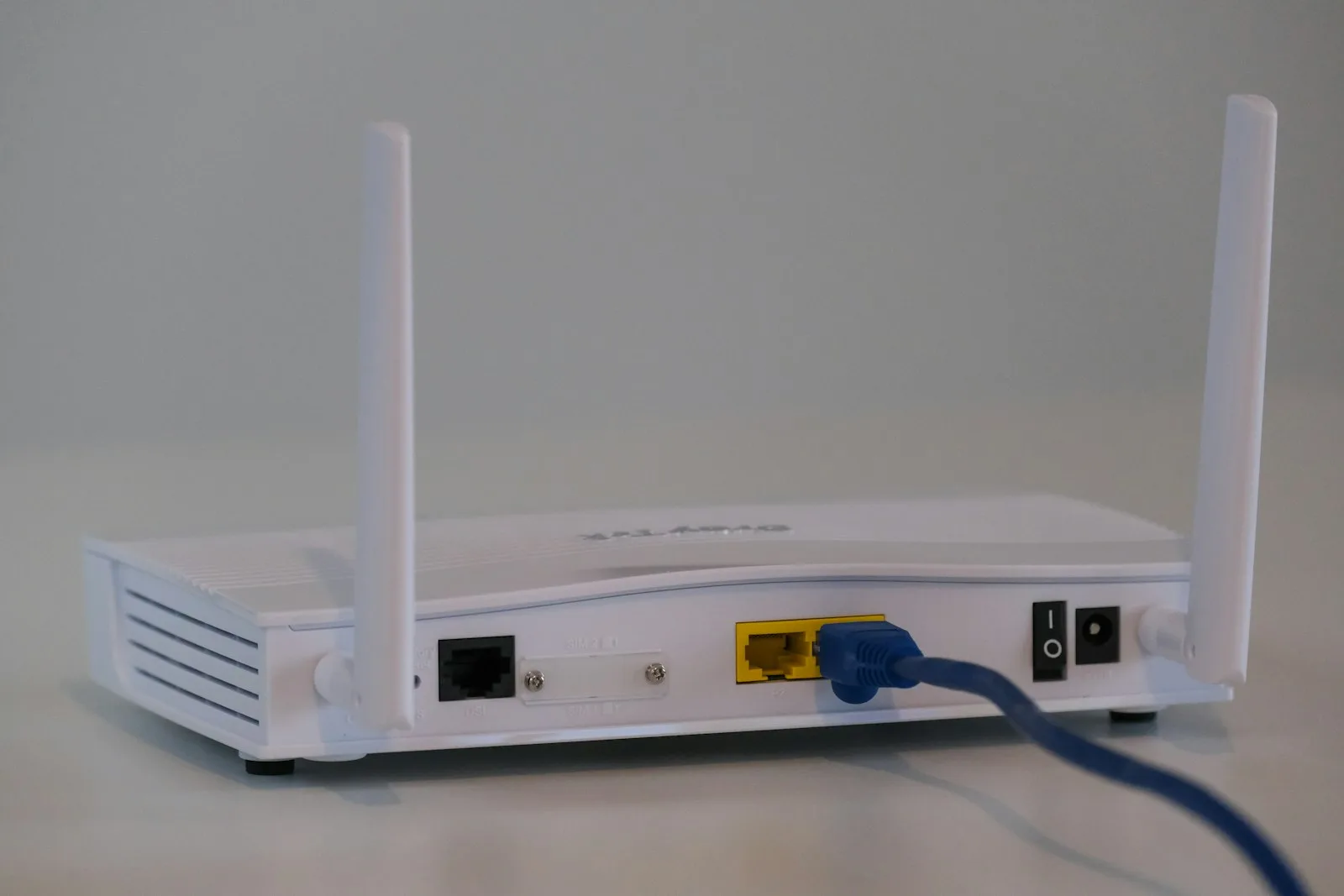
Your office network is everything between your team's devices and the internet: the internet connection, the router and firewall, the switches and cables in the closet, and the Wi-Fi. When it works, nobody thinks about it. When it struggles, it rarely fails all at once. It slows down a little at a time, and your team quietly learns to live with it.
That is the expensive part. A video call that freezes, a file that takes a minute to open, a VPN that drops right before a deadline: each one feels small, but together they eat hours every week. This plain-English checkup walks through the most common signs that an Austin office network is holding a team back, what usually causes each one, and what to do about it.
Sign 1: The Wi-Fi Is Slow or Spotty in Parts of the Office
The conference room where nobody can join a meeting. The back office where the signal disappears. The slowdown every morning around ten, when everyone is online at once. These are the most common network complaints we hear, and the first instinct is usually to buy a faster internet plan or a new router.
Sometimes that is the answer, but often it is not. Many Wi-Fi problems come from where the access points are placed, interference from neighboring networks, too many devices on one access point, or firmware that has not been updated in years. When an Austin urban planning consultancy kept losing connections during meetings and cloud work, a structured Wi-Fi assessment mapped coverage, interference, and access point placement, and gave the firm a prioritized, costed plan before anyone bought new hardware. In that case we estimated, conservatively, that losing 20 minutes per person per day adds up to more than 80 billable hours a month for a firm of 15 to 25 people.
Quick check: run a speed test on your phone in each room where people work, once early in the morning and once at the busiest time of day. Big differences between rooms or between times point to a Wi-Fi design problem, not an internet problem.
Sign 2: Calls Drop, Freeze, or Sound Robotic
Phone calls over the internet (VoIP, or Voice over IP) and video meetings need a steady connection more than a fast one. A network can have plenty of speed and still make calls break up if voice and video traffic has to compete with a large download, a cloud backup, or someone streaming in the next office.
The usual fixes are not exotic: enough upload bandwidth for the number of people on calls, a network that gives voice and video priority over everything else, and wired connections for the desks that spend all day on the phone.
Quick check: do calls break up more on Wi-Fi than on a wired connection? At certain times of day? If yes, the network is not prioritizing calls the way it should.
Sign 3: The VPN Is Slow, Keeps Dropping, or Everyone Avoids It
A VPN (virtual private network) creates an encrypted connection between a remote worker and the office, so files and systems can be reached safely from home or the road. When the VPN is painful, people stop using it. They email files to personal accounts, save copies to their own laptops, or ask a coworker to send things over. Every one of those workarounds is a security gap.
Remote access should be fast enough that nobody needs a workaround, and it should be protected with multi-factor authentication (MFA, a second step that stops a stolen password from being enough on its own). Loose remote access is one of the warning signs of ransomware risk we see most often.
Quick check: ask your remote and hybrid staff two honest questions: do you actually use the VPN, and does it work when you need it?
Sign 4: Nobody Knows Who Set Up the Firewall
The firewall is the gatekeeper that decides what traffic is allowed in and out of your network. In a lot of small offices, it was installed years ago by a former employee or a vendor who is long gone. Nobody knows the admin password, the firmware has never been updated, and the rules inside it are a mystery. The same is often true of the router, the switches, and the Wi-Fi passwords.
A firewall that nobody manages is a firewall that is slowly falling behind. Without a current configuration and a simple map of how the network is set up, every problem takes longer to fix, and every change is a guess.
Quick check: can you answer three questions today? Who has the admin login to the firewall? When was it last updated? Is there a diagram or written record of the network? If any answer is "I'm not sure," that is the place to start.
Sign 5: Everything Shares One Network
Guest Wi-Fi, office laptops, the file server, printers, security cameras, and the smart TV in the lobby all on the same network is more common than you might think. It also means one compromised device can reach everything else. Separating the network into segments, with guests on their own Wi-Fi and sensitive systems walled off, keeps a problem in one place from becoming a problem everywhere.
A Central Texas manufacturer we worked with needed to connect a new production line without exposing its corporate systems. A custom subnet design put the plant equipment on its own segment, with firewall rules controlling exactly what could cross between the two, and the new line came online on schedule.
Your 10-Minute Network Checkup
Run through this list with whoever handles your technology. Each question is a plain yes or no.
- Does everyone get a solid Wi-Fi signal in every room where they work, even at the busiest time of day?
- Do phone calls and video meetings stay clear without freezing or dropping?
- Can remote staff connect to the VPN quickly, and is it protected with MFA?
- Do you know who has the admin login to your firewall and Wi-Fi, and when they were last updated?
- Is guest Wi-Fi separate from the network where your business data lives?
- Is there a current diagram or written record of how your network is set up?
Every "no" or "not sure" is a place where your network is probably costing your team time, or leaving a door open.
What Good Network Support Looks Like for an Austin Office
The most important rule is to diagnose before you buy. A network review shows where the bottleneck actually is, so your money goes to the real cause instead of a new router that does not fix anything.
After that, good IT network support keeps the network healthy so problems get caught while they are still small: monitoring around the clock, a managed and up-to-date firewall, secure Wi-Fi with separate guest access, remote access behind MFA, and up-to-date documentation of how everything is connected. When the internet provider is the problem, we deal with them for you. You make one call, and we handle the rest.
Key Takeaways
- A struggling office network rarely fails all at once. Slow Wi-Fi, choppy calls, and a painful VPN quietly cost your team hours every week.
- Diagnose before you buy: many network problems come from placement, configuration, or outdated equipment, not from a slow internet plan.
- If nobody knows who manages your firewall or how your network is set up, start there. Documentation, segmentation, and MFA on remote access protect the business as much as they speed it up.
Wondering what your network is really doing? See how our IT network support works, or request a free network review and we will walk through this checkup with you. You deal with the owner, not a call center.